
How to setup VPN in Android
To setup a new vpn connection on your device with Android operational system you need to do the next steps.
To create new vpn connection
- Click Settings icon
- Select Wireless & Networks and click on VPN
- Select Add VPN Network

- Input connection name (VPNPrivacy for example), select the type of your VPN connection - PPTP VPN, input VPN server address from your account data.
Please be carefully - don't use any additional symbols like spaces, http://, www, / ...etc in the server address.
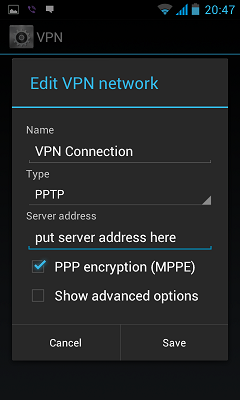
- Input your Username and password that you received from VPN privacy service to your e-mail.
Save it and tap Connect

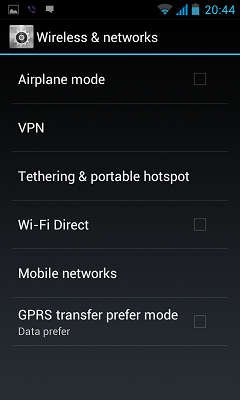

When you need to connect to VPN server please do the next steps:
- Select Settings.
- Tap Wireless & Networks.
- Tap VPN.
- The VPN connections you have added are present in the list.
- Tap the VPN you wish to connect to.
When you are connected to VPN, you will see an ongoing notification in the Status bar on your Android device. If you are disconnected, you will receive a notification and an option to go back to the VPN settings section.
To Disconnect from the VPN:
Open the notifications panel at the top of the screen on your phone and tap on the VPN notification, then select disconnect.
 USA (San Jose, CA)
 Canada (Montreal,Quebec)
 Luxembourg (Europe)


